 Vanta
VantaRun on-device AI on your iPhone or iPad
Use supported GGUF and MLX models directly on your device, or choose available Apple Intelligence, with practical memory and offline limits.
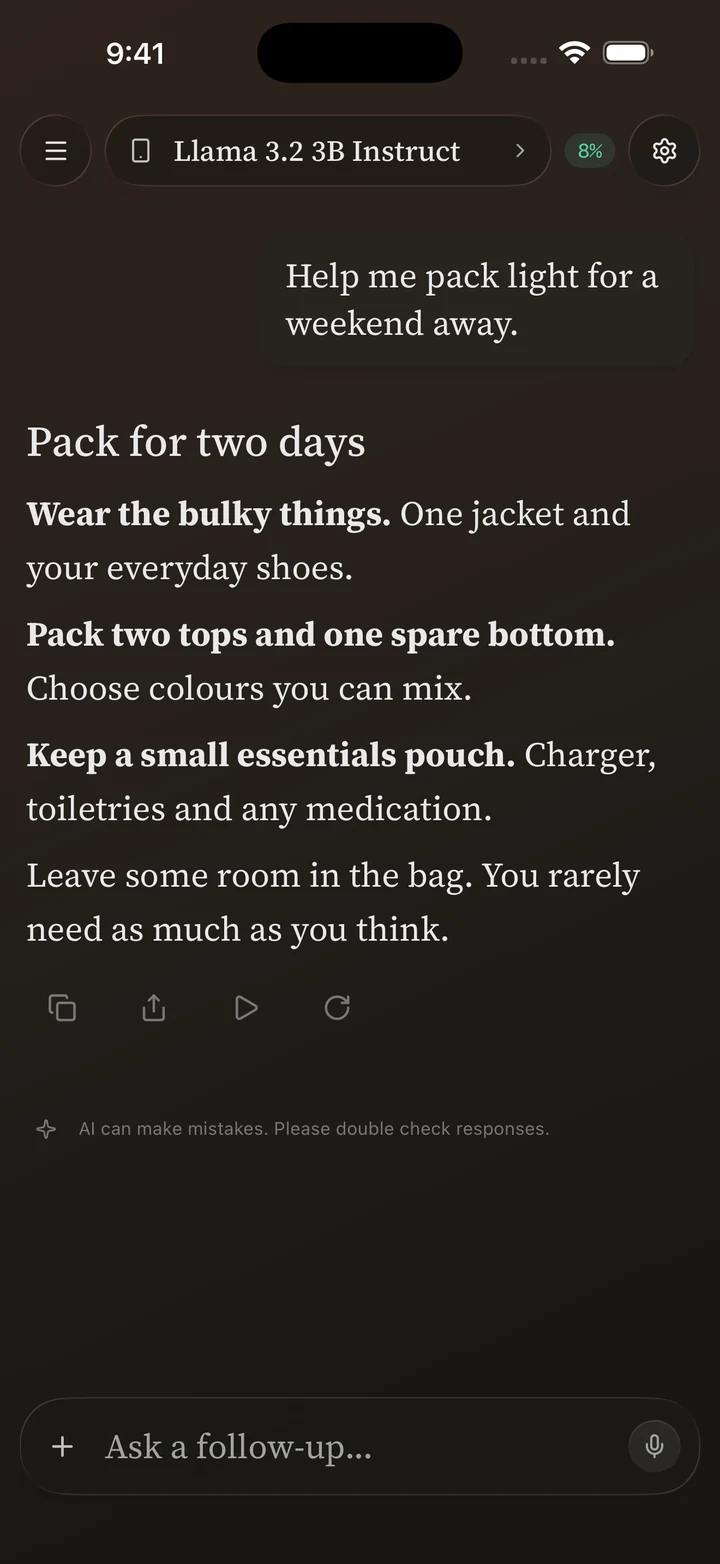
On-device AI runs the model directly on your iPhone or iPad. Vanta supports downloaded GGUF and MLX models for that local inference, without a separate server or cloud API key. On eligible devices, it can also use Apple’s available on-device system model. Compare on-device and self-hosted AI if you are deciding where to run your model.
Choose a runtime
| Runtime | Model source | What to expect |
|---|---|---|
| GGUF | Supported Hugging Face downloads or a GGUF file you import | Text chat through llama.cpp. No image input or model tool calling in Vanta. |
| MLX | Supported MLX model repositories | Text chat; selected models also support vision or tool calling. |
| Apple Intelligence | The system model | No separate download inside Vanta. Requires eligible hardware and current system availability. |
For GGUF and MLX, the file format alone is not sufficient: the engine must also support the model architecture and its required assets. Use Vanta’s supported choices before trying an arbitrary repository.
Download a model
- Open Settings → Local AI.
- Browse the available models and choose GGUF or MLX.
- Open a model’s details and select a suitable download. Start with a small model or a compact quantization.
- Wait until all required files finish downloading.
- Create or select its preset in Settings → Models.
- Start a new chat with a short text prompt.
For a GGUF file you already have, use the import action in Local AI. Imported files still need a supported architecture and enough device memory. MLX repositories need more than a single weights file: tokenizer, configuration and any required supporting assets must be present.
Hugging Face hosts model files and model cards. Read the model’s license and intended use before downloading. Downloading is an online step; running an already downloaded model is a separate local step.
Use Apple Intelligence
Look for Apple Intelligence in the model list. Vanta enables selection when the system reports that the model is available. Its integration requires iOS or iPadOS 26 or later, supported hardware, Apple Intelligence enabled and a supported language.
If the row is unavailable, follow its explanation. Enabling Apple Intelligence or finishing a system download may take time. Vanta cannot make an ineligible device support it. Apple Intelligence accepts text and supported tools in Vanta; it does not accept attached images.
Keep memory use manageable
A model’s download size is not its full working-memory cost. Conversation context, temporary buffers and images can add memory use. Lower the context length or choose a smaller model if loading fails or the app closes under pressure.
Temperature changes the way the model samples answers; it does not solve a model that exceeds available memory. Start with a small, stable configuration and change one setting at a time.
Make an offline check
Finish downloads first. Turn off network access, start a new chat with a downloaded model, and send a plain text message. Leave online tools, remote embeddings and cloud transcription disabled during the check. Those are separate services and do not become local with the chat model.
There are no new performance measurements in this guide. Compatibility distinguishes capabilities from device results; privacy explains optional network activity.
Your next chat starts here.
One purchase. Your choice of models.